Posted by Elaine Becker on Wed, Apr 28, 2010
CyberChrome Inc was an exhibitor at the recent American Coatings
Show in Charlotte, NC. Featured products included OnColor Profiler for improving inter-instrument agreement and the OnColor Suite of color management software for quality control and color formulation.
According to the press release from the American Coatings Society, "With 328 exhibitors and about 6,700 overall participants (2008: 331 / 5,600), the second edition of the American Coatings Show & Conference was hugely successful as the highlight event of the US paint and coatings industry. The combination of trade show and conference, held April 12-15, 2010 at the Charlotte Convention Center, North Carolina, thus once again exceeded all expectations."
Attendees came from not only North and South America, but there was a strong presence from Asia as well. Visitors at the CyberChrome booth included many US companies but also companies from Canada, Mexico, India, China, and other Pac Rim countries.
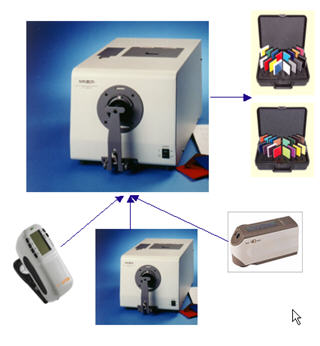
Interest in instrument profiling was high as companies struggle to manufacture to the same electronic color standards with tight color tolerances around the world. OnColor Profiler helps to meet the objective by providing much tighter inter-instrument agreement and allows them to meet the rigid color tolerances demanded in today's market.
Many larger companies are also interested in placing color matching systems at their distributor locations where they can match their own custom colors and reduce the burden on the color lab at the main facility. It also allows distributors to turn around custom matches in a much shorter time. CyberChrome's Match Express software provides an affordable and easy to use software package for distribution locations.
While attendance was "decent" at this show, exhibitors and attendees both wonder about the future of trade shows such as this one. With internet meetings, webinars, and the high costs of travel, it seems like fewer and fewer people attend these shows. There is still much to be said for face to face meeting, ralationship building and the social interaction that happens at events like this. What are your thoughts on attending trade shows in the future?
Posted by Elaine Becker on Wed, Mar 10, 2010
As the North American Manager of Color Services for Pittsburgh-based PPG, a $16 billion per year manufacturer of paints, coatings, chemicals, optical and glass, Shelley Sturdevant knows something about color matching. She manages and oversees color control for the Coil and Extrusion coatings business at 10 facilities nationwide, with a color palette currently holding over 100,000 colors.
We had the opportunity to spend a few minutes with Shelley as she shared some of what she's learned managing color for PPG over the years:
CyberChrome (CC): What prompted your move into digital color matching and when?
Shelley Sturdevant (SS): About 10 years ago we decided we needed to find the right tools, the right hardware and software, to manage our color needs then and into the future. We needed to build a foundation to manage our huge color palette, including some colors we've been managing for more than 30 years. That's when we settled on OnColor.
CC: What were you looking for in a color matching software application?
SS: Two things primarily, speed and productivity. The OnColor software can search through 50,000 to 60,000 colors in seconds. And, uniquely, it gives you the ability to do very specific color calibrations. It's an important tool for us in the lab but it's also key to our production in batch correction so technicians at all 10 of our facilities can consistently produce the same colors.
CC: Anything else?
SS: Compatibility with a range of spectrophotometers. That enables us to get the best hardware to pair with the software. These tools form the foundation of our house so to speak, but where it really gets interesting and valuable is what you might call the ‘attached garage,' that is, how we use it to interface with our customers.
Now, we're all speaking the same language, not just internally, but we can communicate that directly to our customers. About 40 percent to 50 percent of our customer base has adopted our software and hardware systems models and we train them how best to use it. We can all access the same database which we put up on the Web and they can see new colors, research standard colors, and get precise, reproducible results.
CC: What are some of your newest challenges?
SS: Working to comply with the new ‘green' regulations that have recently been enacted, specifically achieving maximum solar reflectance values (SRVs) without sacrificing the quality of the color match.
These new formulations take the known color matching rules and throw them out the door. The use of brown (blended) pigments to effect L value (versus traditional black pigments) creates new color matching models and obstacles. So, we have to rethink how we match colors.
CC: Thank you for spending time with us.
SS: Thank you.
(Note: Shelley Sturdevant can be reached on email at ssturdevant@ppg.com)
Posted by Myron Langer on Thu, Oct 29, 2009

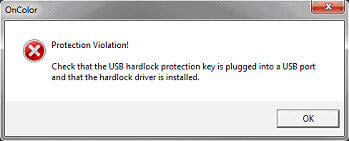
The OnColor Suite of color QC and color matching software is licensed through use of a hardlock key. The USB hardlock key that is shipped with the software can be used on one computer at a time.
There are two ways to successfully install the Hardlock driver required for the USB key used by OnColor in Windows 7 and Vista:
- OnColor setup will run HLDRV32.EXE (Included on the installation CD) which installs the Hardlock drivers.
- Allowing Windows to install the Hardlock driver the first time the USB key is used.
If both driver setups take place, however, the Hardlock key will not work as the drivers conflict.
The preferred method is to follow our instructions and not insert the Hardlock USB key until after the setup of OnColor. The OnColor setup will run HLDRV32.EXE, which will prevent the Windows drivers from being installed when the USB key is inserted.
If for whatever reason, the Windows driver for Hardlock has been installed before the OnColor setup, you must uninstall the HLDRV32 Hardlock drivers after the OnColor setup. To uninstall the Hardlock drivers, go to the Control Panel -- Programs and Features, which shows a list of programs that can be uninstalled. You should see "Hardlock Device Drivers" in that list. Uninstall that program. Unplug the Hardlock key and then reboot the computer. Plug in the Hardlock key and you will now be using the Windows supplied Hardlock driver.
If you know that the Vista Hardlock key driver has already been installed by Windows, you can hit the Cancel button during installation of the OnColor CD when the Hardlock setup dialog is displayed and then continue on with the OnColor installation.
Posted by Tom Merck on Wed, Sep 02, 2009
Many color instruments and spectrophotometers in use today come with a serial cable to connect and communicate with a computer. However, serial ports are a thing of the past and very few PC's come with a serial port as standard
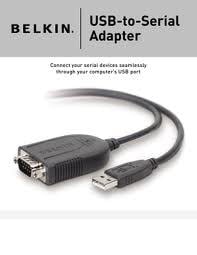
configuration these days. While you can always install a serial port, an easier way to connect to the PC is to use a Serial to USB adapter. This is a special cable that plugs into the serial port output of your spectrophotometer on one end and plugs into a USB port on the computer on the other. This circumvents the need for a serial port on the PC.
There are a few tricks to getting this to work however. Resist the temptation to just plug the cable in and see if it works!!! First, it is important that you read and follow the installation instructions that come with the USB adapter. Typically (but not always), the instructions will direct you install a driver for the adapter BEFORE plugging it into the computer. It's important that you follow the proper sequence, because once you get Windows confused on what is attached to this port, it can be difficult to undo it.
After installing the driver, go to the Windows Device Manager and go to Ports and note what COMM PORT the adapter was assigned to. I In Windows Xp Device Manager is found under Control Panel, then System, then Hardware tab, and then Device Manager button.) You will need to know this in OnColor when you tell it what Comm. Port to look for the spectro on. Then connect the spectrophotometer to the adapter and finally plug it into the PC.
For spectrophotometers that do not use a "straight through" cable, you will need to use the manufacturer's cable out of the spectro and then attach the USB adapter to the 9-pin end of that cable. (Examples of spectros like this would include the Konica Minolta CM-3600d, CM-2600/2500d and CM-3700d.)
Finally, you can open OnColor and go to Communications, choose the comm. Port assigned to this adapter and then test the settings. You should be good to go.
Don't move the adapter around to different USB ports, as the driver typically only configures it for that one USB port. If you move it to another USB port, it may be assigned to a different comm. Port number.
Not all USB adapters are created equal. Some are not compatible with Windows Vista. Others don't handle this type of data communication well. We recommend the Belkin serial to USB adapter (http://belkin.com/support/product/?lid=en&pid=F5U257&scid=1 ) since many OnColor users report no problems using this model.